Bill a Purchase Order to QuickBooks Online
Once a purchase order has been received, Bookkeep can turn it into a bill in QuickBooks Online (QBO) — the vendor invoice that hits your accounts payable. Billing is a manual step: nothing is pushed to QBO until you create the bill yourself, and you decide exactly which receipts it covers.
Before you start
A purchase order can only be billed once it's committed — fully received, with at least one committed receipt. You'll also need an active accounting connection. If either is missing, Bookkeep stops you before you can open the bill screen:
| Message | What it means |
|---|---|
| "Only a committed purchase order can be billed." | The PO hasn't been fully received yet. |
| "This purchase order has already been fully billed." | Every committed receipt on this PO already has a bill. |
| "Connect an accounting platform before creating a bill." | No QuickBooks Online connection is set up for this store. |
Billing is tracked separately from receiving
A purchase order carries two independent statuses, and it's worth keeping them straight:
- Status (Draft, Ordered, Partial, Committed) answers have the goods arrived?
- Bill status (Unbilled, Partially billed, Billed) answers have we recorded what we owe for them?
Receiving never bills anything, and billing never changes what you've received. A purchase order can sit at Committed / Unbilled indefinitely — fully in stock, with the supplier's invoice still unpaid and unrecorded.
Bill status is not something you set by hand. Bookkeep derives it by counting how many of the purchase order's committed receipts have a successfully posted bill:
| Bill status | What it means | Typical situation |
|---|---|---|
| Unbilled | None of the committed receipts on this PO have a posted bill. | The goods are in, but you haven't entered the supplier's invoice yet. |
| Partially billed | At least one committed receipt has a posted bill, but at least one still doesn't. | The order arrived in two shipments and you've billed only the first. |
| Billed | Every committed receipt on this PO has a posted bill. | Fully received and fully invoiced — nothing left to bill. |
Two consequences worth knowing:
- Only a Billed purchase order is finished. Bookkeep blocks the Create bill action once a PO reaches Billed, because there are no unbilled receipts left to put on a bill. Unbilled and Partially billed POs are the ones still needing attention.
- A failed post doesn't count. Only bills that actually reached QuickBooks move the needle, so a bill that comes back Post failed leaves the PO exactly where it was.
Bill status also shifts backwards on its own when the underlying receipts change — voiding a billed receipt, for example, recalculates the PO's bill status from whatever committed receipts remain.
Billing happens per receipt, not per line item. If a purchase order arrived in two shipments, you can bill the first receipt as soon as it's committed and leave the second for whenever its invoice shows up — the PO sits at Partially billed in between. The Bills list filters on exactly these values, with All / Billed / Partially billed / Unbilled tabs, so you can pull up every purchase order still waiting to be invoiced.
Create a bill
You can create a bill using either of the following methods:
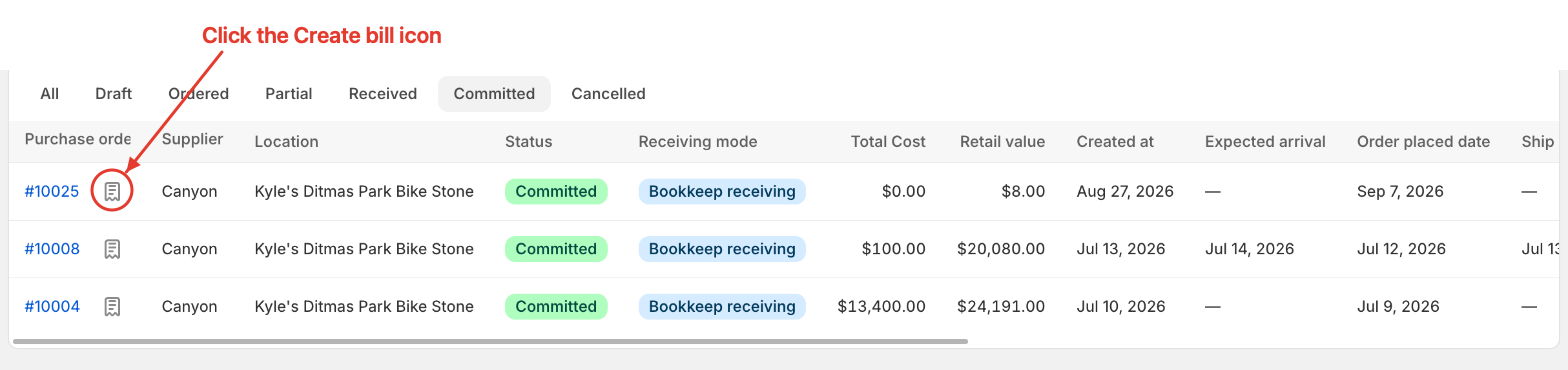
Within the purchase order: Open the order, select the Bills tab, and click Create bill. From the purchase order list: Click the Create bill icon next to the relevant PO number.
1. Select receipts
Click Select receipts and choose which committed receipts this bill covers. Only committed receipts that haven't already been billed can be checked — a receipt still open, or one covered by an earlier bill, shows as disabled with a tooltip explaining why ("Only committed receipts can be billed" or "Already billed"). You can select receipts from more than one shipment on the same bill.
2. Fill in the bill header
- Vendor — the QBO vendor this bill posts against. Type to search. Inactive vendors are hidden until you tick Include inactive vendors.
- Bill number — required. For QuickBooks, keep it under 21 characters.
- Bill date — defaults to today; can't be set in the future.
- Due date — must be on or after the bill date.
- Memo — optional, freeform.
The purchase order's currency, supplier note, tracking number, and supplier invoice number are shown alongside for reference but aren't editable here. A Posting to line at the top of the page names the platform and company file this bill will land in, so you can confirm you're billing into the right QuickBooks company before you submit.
If a vendor or account is missing from the dropdowns
The vendor list and the chart of accounts are cached copies of what's in QuickBooks. If you just created a vendor or added an expense account in QBO, it won't appear in these pickers until Bookkeep re-reads them. Two buttons on the page do that:
- Refresh vendors — re-pulls the vendor list from QuickBooks.
- Refresh accounts — re-pulls the chart of accounts.
Each shows a "Refresh in progress" toast and runs against the connected company file. Refreshing doesn't touch anything you've already filled in on the form, but the pickers only show the new entries once the refresh finishes — if a brand-new vendor still isn't listed, give it a moment and run the refresh again. Reach for these two actions whenever a vendor or category you know exists in QuickBooks isn't selectable here; there's no need to disconnect and reconnect the integration.
3. Review the line items
Selecting receipts fills in the bill's lines automatically:
- One line per received line item, described as item — Qty: n — Unit Cost: n, valued at quantity received × unit cost received.
- One additional line per receipt for its landed costs (freight, duty, and any other allocated fees or discounts), if that receipt has any. This is a single consolidated amount per receipt — the goods lines above already carry cost net of landed cost, so nothing is double-counted. See Configure Fees and Discounts for how landed cost is calculated.
Every line on the bill needs an expense account before you can submit.
To assign accounts quickly, use Default categories above the line items table. Choose one account for goods lines and one for landed-cost lines, and Bookkeep fills in every line of that type. You can still change the account on any single line afterwards, and only that line changes.
To record a charge on the supplier's invoice that is not on any receipt, click Add manual line and enter its description, amount, and account.
Any documents attached to the selected receipts (photos of the packing slip, the supplier's invoice, etc.) are listed under Receipt attachments and are pushed to QBO along with the bill, so the same files that back the receipt show up attached to the bill in QuickBooks.
4. Create the bill
The Total panel sums every line as you build them. Once a vendor, bill number, both dates, at least one receipt, and an account on every line are in place, click Create bill.
Bookkeep sends the bill to QuickBooks Online immediately. On success you land on the new bill's detail page and the covered receipts' PO moves to Partially billed or Billed, depending on whether other committed receipts remain unbilled.
View the bills you've created
Every purchase order has a Bills tab listing the bills made from its receipts, with the bill number, status, vendor, total, bill date, due date, when it posted, and how many receipts each bill covers. Click a bill number to open its detail page. A purchase order with nothing billed yet shows "No bills yet."
Opening the bill in QuickBooks
Bookkeep stores a direct link to each bill in QuickBooks once the post succeeds, so you never have to search for it on the QBO side:
- From the Bills list — a View in QuickBooks link sits at the end of each row. It only appears for bills that actually posted; a bill that failed shows a dash instead.
- From a bill's detail page — a View Bill button in the header opens the same destination.
Both open QuickBooks Online in a new tab, on the bill record itself. If a posted bill has no link, the QBO reference wasn't returned on that post — open the bill from within QuickBooks by its bill number instead.
Reading a bill's status
Because Bookkeep sends the bill to QuickBooks as soon as you create it, a bill only ever ends up in one of two states. The badge on it (in both the list and the detail header) tells you which:
| Status | Meaning |
|---|---|
| Posted | Live in QuickBooks — the QBO link is available, and the bill is read-only in Bookkeep. |
| Post failed | QuickBooks rejected it. The error is shown on the bill, and you can edit and retry it. |
A posted bill's detail page is read-only in Bookkeep: to change a bill that's already in QuickBooks, edit it in QuickBooks, or void the underlying receipt in Bookkeep and bill again. See Fix a Receipt: Voids and Cost Corrections.
If the QBO post fails
A bill can fail to post — an expired connection, or a vendor or account that was deleted on the QBO side, and so on. Bookkeep still keeps the bill record, marks it Post failed, and shows the error QuickBooks returned in a red banner at the top of the bill.
A failed bill doesn't count as billing its receipts. Those receipts stay available to bill, and the purchase order's bill status is unaffected — so a failed post never silently leaves a shipment marked as billed.
Unlike a posted bill, a failed one is editable. Open it and you can correct the vendor, dates, bill number, line accounts, or even which receipts it covers, then click Retry bill. Two things to know about retrying:
- If a vendor or expense account was the problem, fix it in QuickBooks first, then use Refresh vendors / Refresh accounts so the corrected entry is selectable.
- A retry posts a brand-new bill rather than updating the failed one, so you'll be moved to the new bill's page — whether it posts successfully or fails again. The original failed record stays in the list as history.
Quick reference
| Who can be billed | Committed purchase orders with at least one committed, unbilled receipt |
| Billing granularity | Per receipt (a PO can be billed across several bills, one per shipment) |
PO's bill_status | Unbilled → Partially billed → Billed, driven by which committed receipts have a posted bill |
| Line items on the bill | One per received line item, plus one consolidated landed-cost line per receipt with fees or discounts |
| Attachments | Every selected receipt's documents are sent to QBO with the bill |
| Missing vendor or account | Refresh vendors / Refresh accounts buttons on the create-bill page |
| Line categories | Default categories fill every goods and landed-cost line; any line can still be overridden |
| Opening the bill in QBO | View in QuickBooks in the Bills list, or View Bill on the bill's detail page (posted bills only) |
| Editing a bill | Posted bills are read-only in Bookkeep; only Post failed bills can be edited and retried |
| Failed post | Receipts stay unbilled; fix the cause, then Retry bill (which posts a new bill) |