Add Purchase Order Line Items from a CSV
You can add line items and quantities to a draft purchase order in bulk by uploading a CSV file. Each row in the file becomes a line item on the purchase order, matched to one of your Shopify variants by SKU or by barcode. Rows that cannot be matched or are invalid are returned to you in a separate error file so you can fix and re-upload them.
Choosing SKU or Barcode
Before you upload, pick the identifier under Match products using. SKU is the default. Choose Barcode when the same SKU is reused across several variants, or when your supplier's order sheet lists UPCs rather than your SKUs.
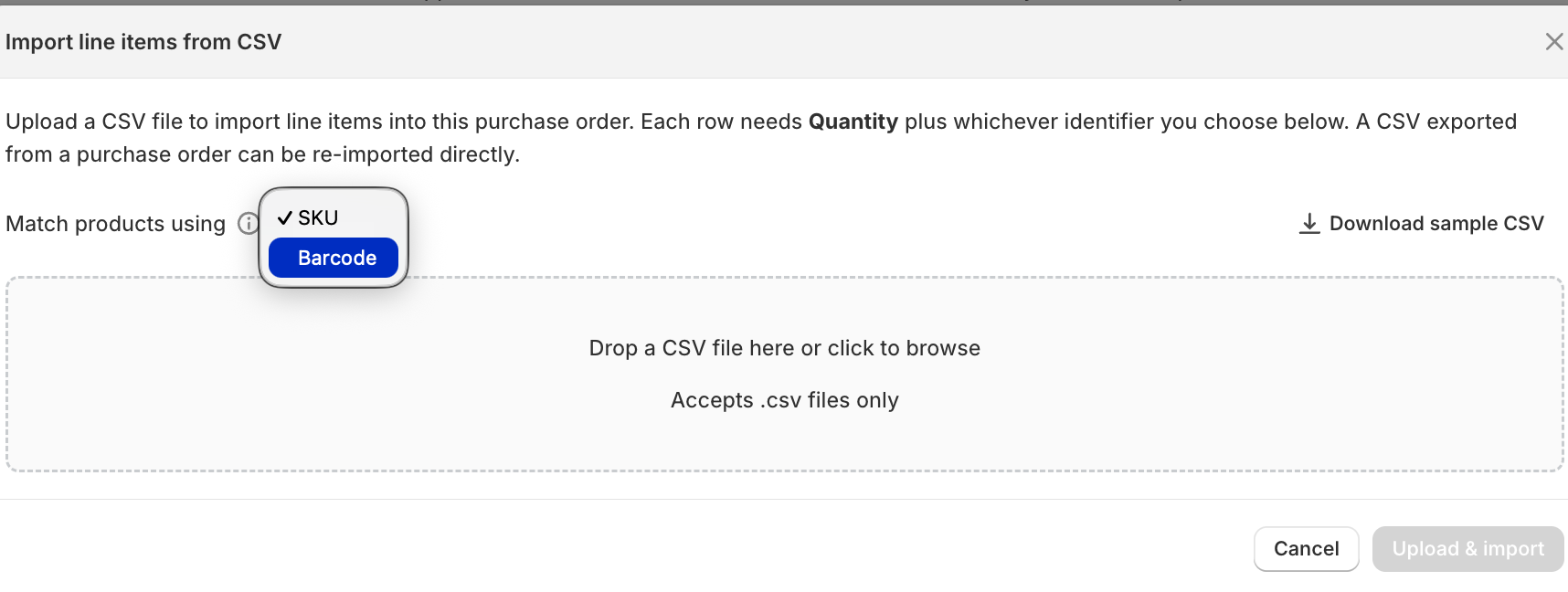
The choice applies to the whole file. Rows are matched by the identifier you picked and nothing else.
Before You Start
- The purchase order must be in Draft status. Line items cannot be imported once a purchase order has been ordered, received, or cancelled.
- The variants you reference should already exist in your catalog (they are synced from Shopify). Rows that do not match a known variant are reported in the error file.
CSV Format
The first row of the file must be a header row. The following columns are supported:
| Column | Required | Description |
|---|---|---|
| SKU | When matching by SKU | The variant SKU. |
| Barcode | When matching by Barcode | The variant barcode. UPC, EAN, GTIN, and ISBN are accepted as column names. |
| Supplier SKU | No | Your supplier's own code for the item, entered in Bookkeep. It is separate from the item's Shopify SKU and barcode. Used to match the item when matching by SKU and the SKU is blank or unmatched. |
| Quantity | Yes* | Whole number greater than 0. If left blank, defaults to 1. |
| Cost | No | Unit cost. If left blank, a default is used (see "Defaults" below). |
| Tax | No | Tax percentage for the line. Defaults to 0 if blank. |
* The Quantity column and the identifier column you chose must be present in the header row. Individual cells may be blank (Quantity defaults to 1; when matching by SKU, a blank SKU can still be matched by Supplier SKU).
Barcodes that are all digits keep their leading zeros. The error file writes them with a leading apostrophe so a spreadsheet does not strip the zeros, and the importer removes the apostrophe on re-upload.
Extra columns are ignored. Any column not listed above (for example Product, Variant, Available, or Price) is simply skipped when building line items, so you can upload a report-style export without trimming it first. Column names are matched case-insensitively and a trailing * is allowed (e.g. SKU*). Note that if a row fails, the error file echoes back all of your original columns — including the extra ones — plus a Reason column, which makes it easy to identify the failed rows.
A simple example:
SKU,Barcode,Supplier SKU,Quantity,Cost,Tax
TSH-728-TEA,194253401234,SUP-1001,3,12.50,5
MUG-114-BLK,194253405678,,2,,0
,,SUP-2002,,,
How Items Are Matched
Matching by SKU. Each row is matched in this order:
- SKU, against your catalog variant SKUs.
- Supplier SKU, if the SKU is blank or does not match. The lookup is scoped to the supplier assigned to the purchase order.
Matching by Barcode. Each row is matched against your catalog variant barcodes. There is no fallback to SKU or Supplier SKU; a row with a blank barcode goes to the error file.
Either way, a row that matches no variant, or more than one, is added to the error file with the reason.
If a row references a variant Bookkeep has not synced from Shopify yet, the import looks it up in Shopify first and syncs the product before applying the row. This can take a few minutes for a large file; the purchase order page shows progress.
Defaults
To make uploads easier, blank values are filled in automatically:
- Quantity — defaults to
1when blank. - Cost — when blank, the system uses the supplier's catalog price for the item if one exists; if not, it falls back to the supplier's last cost. If neither is available, the line is added with no cost.
- Tax — defaults to
0when blank.
Merging With Existing Lines
If a row matches a variant that is already on the purchase order, the imported quantity is added to the existing line rather than creating a duplicate. Likewise, duplicate rows within the same file for the same variant are combined into a single line.
When merging into an existing line, only the quantity changes. The existing line's unit cost and tax are kept as-is — any Cost or Tax value in the CSV row is ignored for lines that already exist. (The line total is recalculated from the existing unit cost and the new, larger quantity.) If you need to change the cost of an item that is already on the purchase order, edit that line directly rather than re-importing it.
The Response and Error File
When the upload finishes, you receive a summary of what happened:
- processed — number of rows read from the file.
- added — number of new line items created.
- updated — number of existing line items whose quantity was increased.
- errors — number of rows that could not be applied.
If any rows failed, the response includes a link to an error file. The error file contains only the failed rows — each with its original columns plus an extra Reason column explaining why it was skipped. Successful rows are not included. Fix the listed rows and re-upload just those.
Rows that succeed are always applied, even if other rows in the same file fail — a few bad rows do not block the rest of the import.
Common Error Reasons
| Reason | What it means |
|---|---|
Invalid quantity ... | The Quantity value was not a whole number greater than 0. |
Could not resolve variant by SKU ... | The SKU did not match any variant in your catalog. |
Could not resolve variant by Supplier SKU ... | The Supplier SKU did not match any item for this purchase order's supplier. |
Ambiguous SKU ... | The SKU matched more than one variant, so it could not be applied automatically. Re-import these rows matching by Barcode. |
Could not resolve variant by barcode ... | The barcode did not match any variant in your catalog. |
Ambiguous barcode ... | The barcode matched more than one variant. |
Barcode required to resolve variant | You chose Barcode matching and the row's Barcode cell was blank. |
Frequently Asked Questions
Can I import into a purchase order that has already been ordered?
No. Line items can only be imported while the purchase order is a draft.
What if I leave the Cost column blank?
The system fills it in from your supplier's catalog price, then the supplier's last cost. If neither exists, the line is created without a cost and you can edit it later.
Can I mix SKU and barcode rows in one file?
No. The identifier you choose applies to every row. Split the file in two and import each with its own setting.
Will re-uploading the same file create duplicates?
No duplicate lines are created for the same variant — quantities are added to the existing line instead. If you only want to fix the failed rows, upload a file containing just those rows.
Does this change anything in Shopify?
No. The import only adds line items to the purchase order in Bookkeep.