Managing User Permissions for Bookkeep Inventory
Access to Bookkeep Inventory is controlled by two separate sets of permissions. Shopify manages who can launch the app from Shopify admin; Bookkeep controls what they can view and do once the app is open.
Understanding User Roles
Every user in Bookkeep's app is assigned a specific role on the store's entity. This role is determined either by the invitation you send them or by how they first opened the app.
| Role | Access Level |
|---|---|
| Primary Admin / Admin | Full access to all Bookkeep features and entities, including Bookkeep Inventory. |
| Staff (Entity Admin, View and Manage User, View Only User) | Full access to Bookkeep Inventory. |
| Inventory Only | Restricted to purchase orders, receiving, suppliers, two inventory reports, and Inventory settings. |
Note: Bookkeep Inventory does not presently offer a read-only mode. Any role with access to Bookkeep Inventory can create, order, and receive purchase orders.
For the full list of roles and what each allows outside Inventory, see Bookkeep User Types.
The Inventory Only Role
This role is designed for warehouse or store staff who receive stock.
- Navigation: Home, Purchase Orders, and Reports.
- Reports: Limited to Inventory on Hand and Purchase Order History by Variant.
- Settings: The Settings button on the Purchase Orders page opens Purchase orders, Landed cost fees, Printouts, and, once a Stocky key is saved, Stocky import. Accounting, Billing, and API keys are hidden.
- Access limitation: If these users sign in at app.bookkeep.com instead of the Shopify admin, they see a Shopify app access only screen with a link back to Shopify admin.
Step 1: Granting Shopify Access
A user must first have permission within Shopify to launch the Bookkeep app.
- In Shopify admin, go to Settings > Users > Roles.
- Open the desired role or create a new one.
- Under App permissions, choose specific apps and select Bookkeep.
Shopify Tip: Leave Manage and install apps and channels disabled for receiving staff. They only need permission to open Bookkeep, not to install or delete apps.
For more details, see Shopify's guide on store permissions.
Step 2: Granting Bookkeep Access
There are two ways to assign a role in Bookkeep.
Option A: Send an Invitation
Use this method when you want to choose the user's role rather than accept the default Inventory Only role.
-
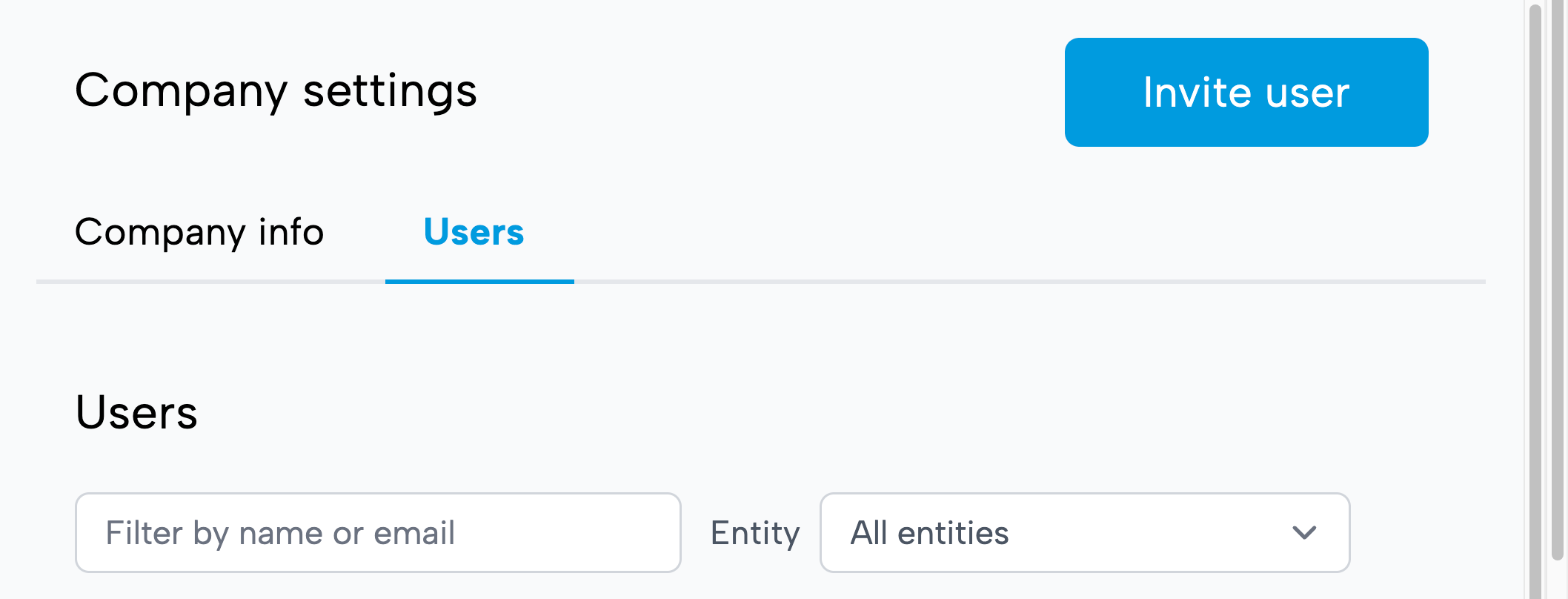
In the Bookkeep web app, go to Company Settings → Users.
-
Click Invite User.
-
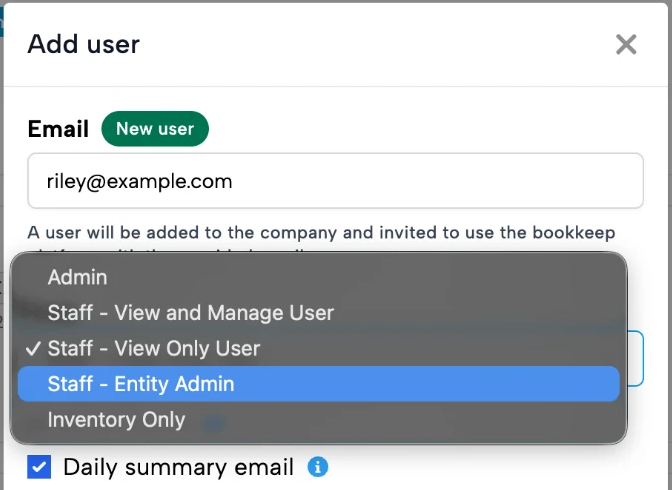
Enter the email address and select the desired role.
- Inventory Only: Restricts the user to Bookkeep Inventory.
- Other roles: Grant access to Bookkeep Inventory plus the additional permissions associated with that role.
-
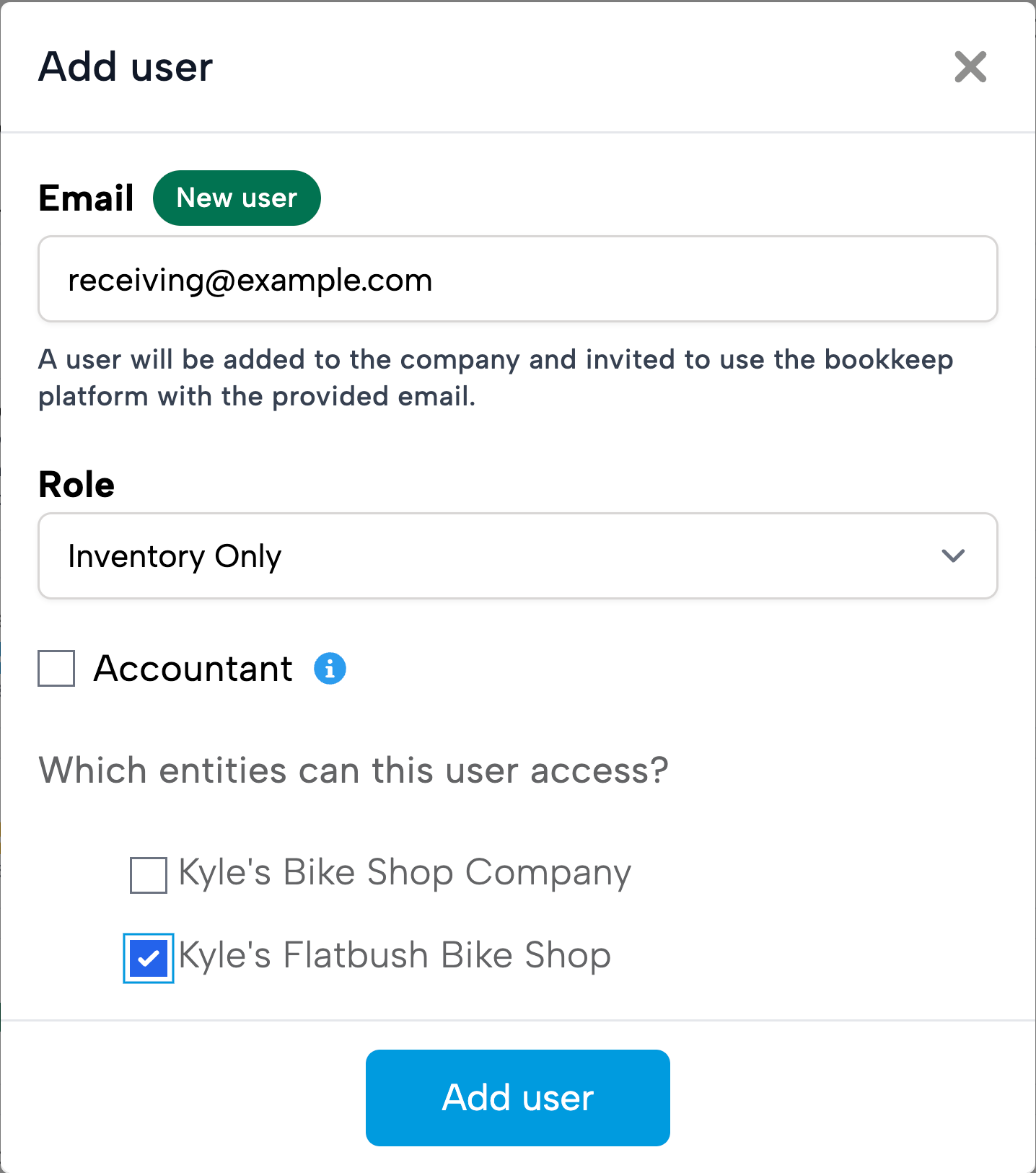
For Inventory Only and Staff roles, select the entities the user should work in.
-
Click Add user.
The user receives an email to complete their signup. Their role applies as soon as the invitation is created, so they never hold broader access, even before they accept. Inventory Only users are not offered the Daily Summary Email.
Note: The Inventory Only role does not have a Can access all entities toggle. An entity you add to the company later does not reach Inventory Only users until you edit their access.
Option B: Automatic Access via Shopify
Users who have Shopify permission to open the Bookkeep app can do so without an invitation.
- How it works: When they first open the app, Bookkeep links them to the store's entity with External access. This is the Inventory Only role under another label.
- Confirmation: If their email is new to Bookkeep, they receive a confirmation email. They must click the link by the date shown on screen to keep their access.
- Exceptions:
- The user who installs the app for a new store becomes the entity's owner.
- The installer named on a connect request becomes an Admin of the entity.
- Previously removed users always return with the Inventory Only role, whatever a connect request says.
Your company's admins receive an email notification whenever a new user is added through Shopify. For more details, see Add Users to the Bookkeep App within Shopify.
Managing Existing Access
Viewing Access
Go to Company Settings → Users to see everyone with access to your entities, including users who joined through the Shopify app. Each row shows the user's role as an Access Type pill, how they got access, and which entities they can open. Inventory Only users are tagged with an External badge.

Upgrading a User to Full Permissions
You can upgrade any Inventory Only user, whether they were invited or joined through the Shopify app.
-
In the Bookkeep web app, go to Company Settings → Users and find the user.
-
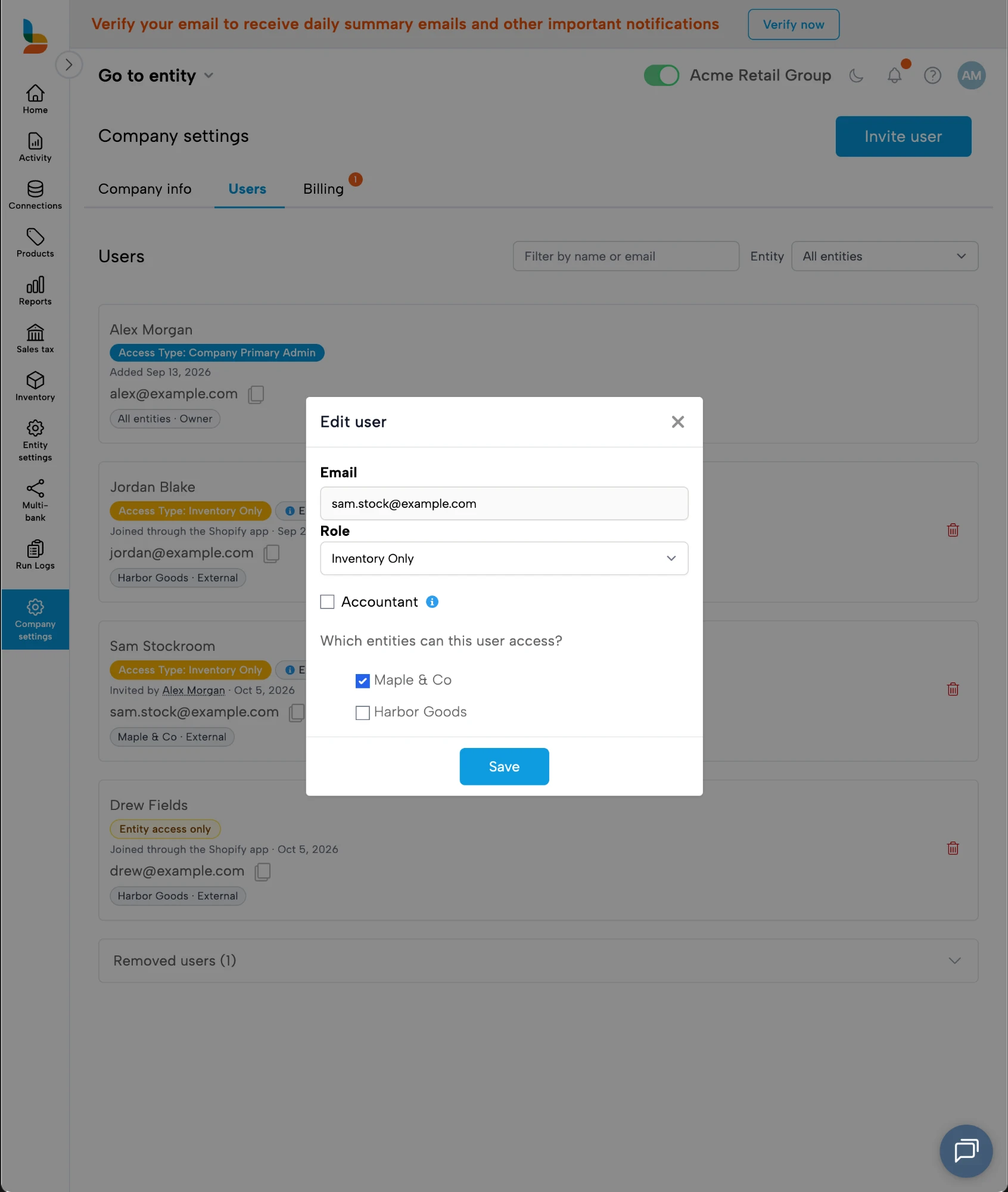
Click their row to open the Edit user window.
-
Select a new Role.
- Admin: Grants access to all entities and all of Bookkeep automatically. The entity picker is hidden.
- Staff roles: Let you select specific entities for the user, or turn on Can access all entities.
-
Optionally, select Accountant if the user is your outside accountant or bookkeeper. Bookkeep then stops prompting you to invite an accountant and never asks them to add a payment method.
-
Click Save.
Once saved, the updated permissions take effect immediately on every entity the user keeps access to, and the External badge is removed. If the user joined through Shopify and had not yet clicked their confirmation email, saving confirms their access. The next time they open the Bookkeep app in Shopify, they see the full navigation, and app.bookkeep.com no longer shows the access restriction screen.
Note: Upgrades made before October 29, 2026 did not reach the entities the user already held, so they may still see the Shopify app access only screen. To fix this, open Edit user, select a Staff role, click Save, then set the role back to Admin and save again.
Restricting or Removing Access
The Edit user window also changes which entities a user can reach. However, switching an existing user to Inventory Only does not remove the broader access they already hold on their entities. To restrict a user with a broader role, email support@bookkeep.com.
Only the primary admin can remove a user. For a user who joined through the Shopify app, the trash icon removes them from every one of your entities they can open. If they open the app again, they return with the Inventory Only role.
Receiving in Shopify POS
Permissions in Shopify POS are managed by Shopify. Any staff member who can use the POS device and sees the Bookkeep Receive Inventory tile can submit receipts, and Bookkeep records each receipt under their name. For more details, see Receive a Purchase Order in Shopify POS.