How Bookkeep Handles Square Checking Account Data
Some Bookkeep customers using the standard Square integration may notice that no deposits appear for their Square Stored Balance account, even though sales are occurring. This typically happens when the merchant is using a Square Checking account instead of having Square send deposits directly to an external bank account from their stored balance.
Bookkeep fully supports these scenarios through our Square Balance Transactions Automation, which captures all financial activity occurring within your Square Checking accounts.
Why Deposits May Not Appear in Bookkeep
If you or your client use Square Checking accounts, Square may hold funds within those accounts and only move money to your external bank account as needed. In these cases, deposits will not appear through the traditional Square API data.
Instead, all movement of funds (e.g., transfers, withdrawals, savings allocations) takes place inside Square’s banking products, which requires a different automated workflow.
How Bookkeep Captures Square Checking Activity
Bookkeep offers enhanced automation to pull financial transactions from your Square bank accounts.
To enable this feature:
-
Contact support@bookkeep.com and request to turn on Square Balance Transactions.
-
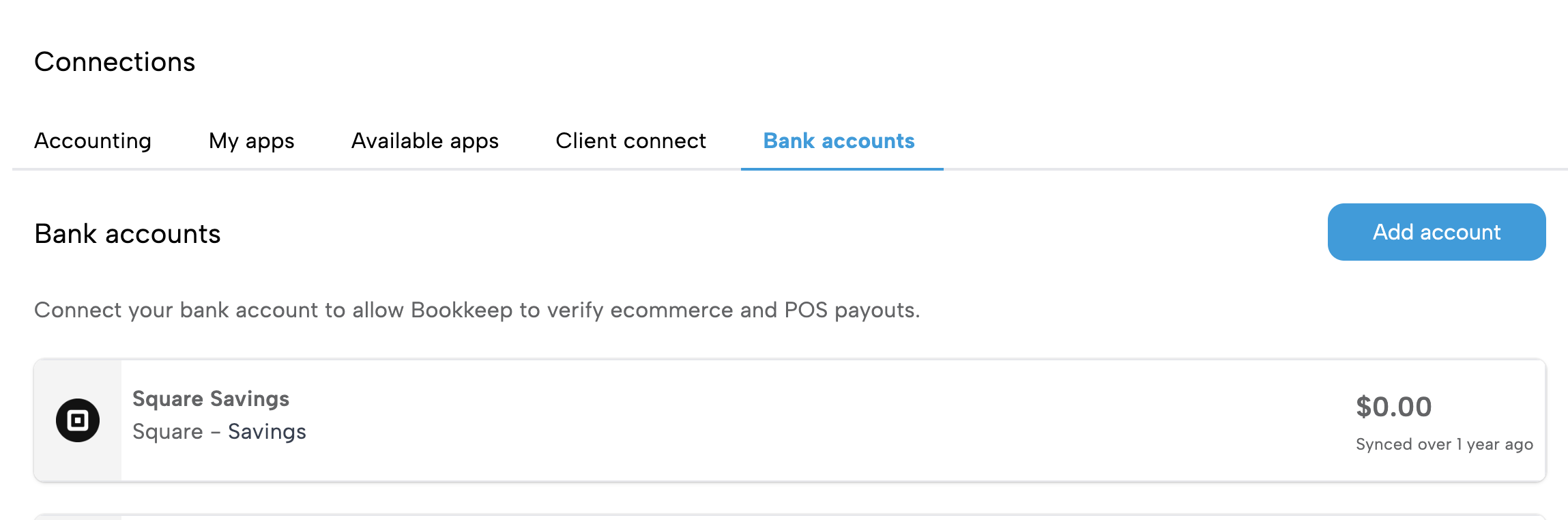
Once enabled, you will be prompted to connect your Square Checking accounts using a secure banking connection. As shown below, this can be done via the "Bank accounts" tab on the Connections view.
-
Bookkeep will then begin pulling your Square financial data daily.
Where These Transactions Appear in Bookkeep
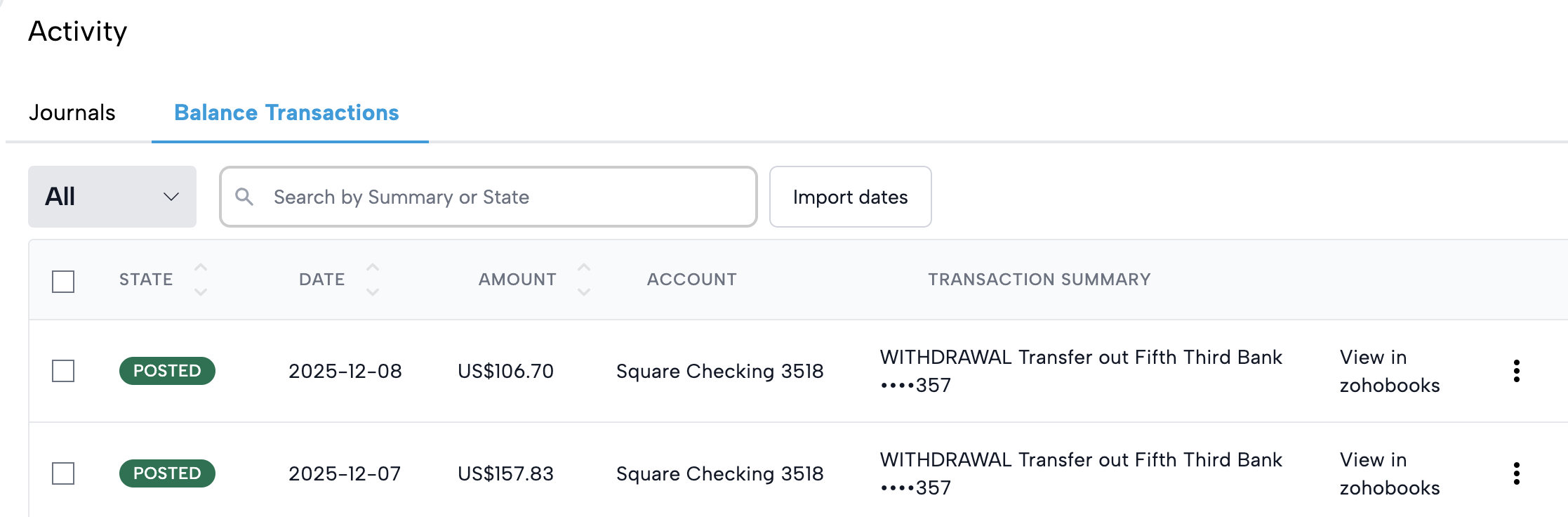
After activation, transactions from your Square Checking accounts will appear under a new tab called:
Balance Transactions (in your Activity View)
This section provides a dedicated view for all Square bank activity—including transfers, deposits, withdrawals, internal allocations, and more.
Reviewing and Posting Balance Transactions
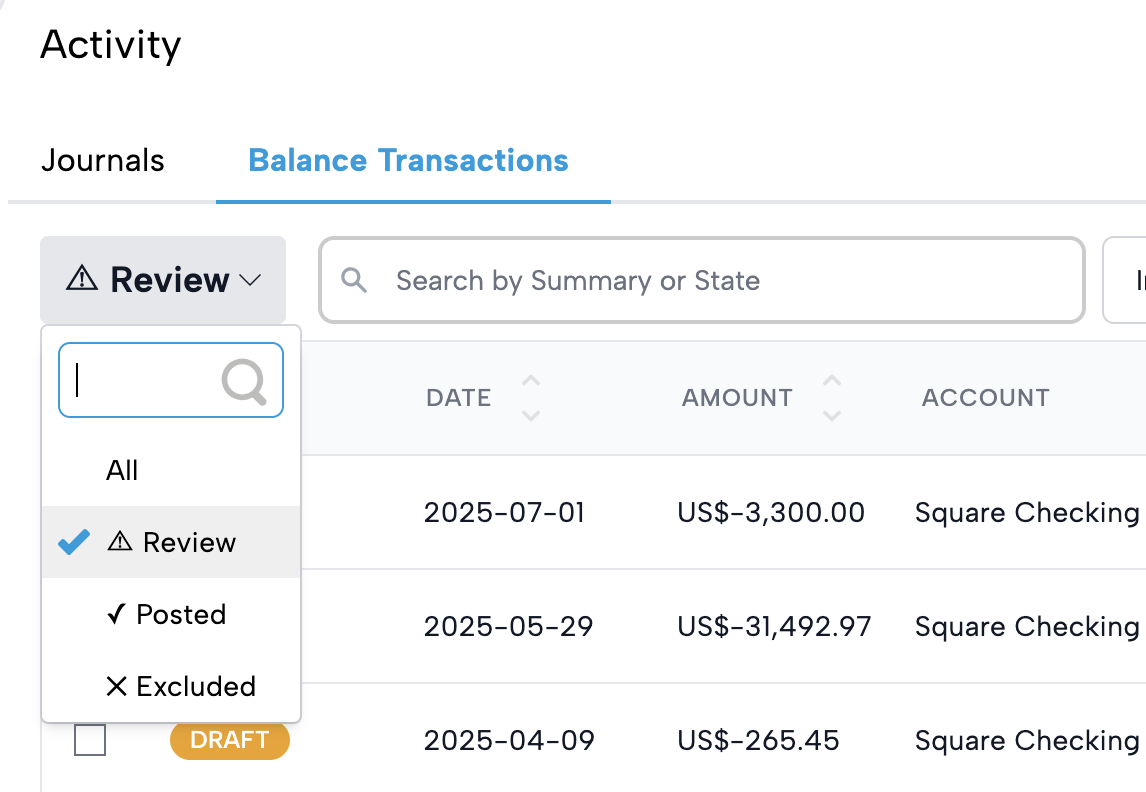
Before Bookkeep can post these transactions to your accounting system, they must be reviewed.
Use the Review filter to see all pending items as shown below.
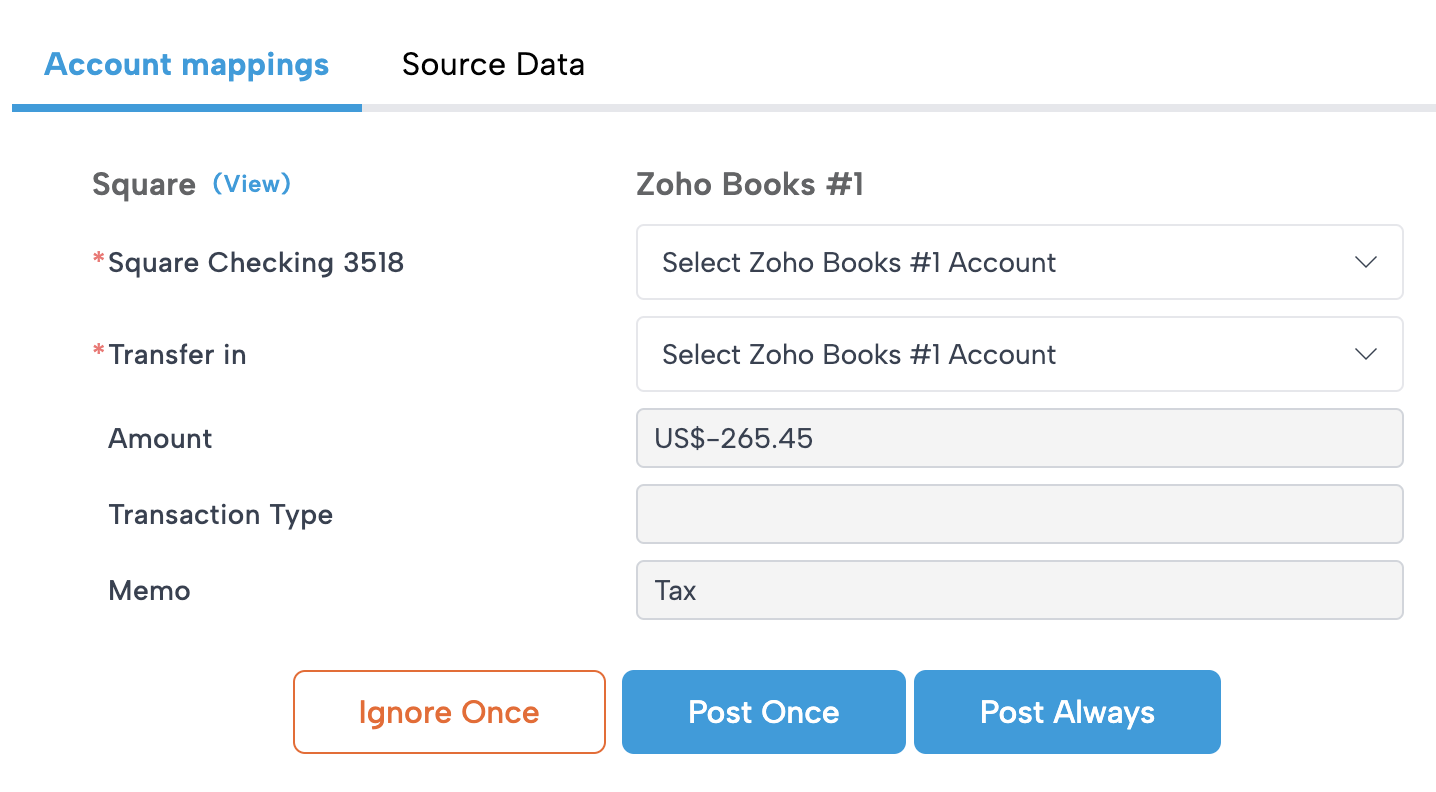
For each transaction, you’ll assign:
-
From Account
-
To Account
Example:
Square Checking → External Bank Account for a nightly transfer.
Once reviewed, you can choose:
Post Once
→ The transaction posts one time. Future similar transactions must be reviewed manually.
Post Always
→ Bookkeep will automatically post all future transactions that match the following attributes:
-
description — Same text (e.g., “Transfer to Bank ****1234”)
-
transaction_type — e.g., CHARGE, REFUND, WITHDRAWAL
-
currency — e.g., USD, CAD
This creates a hands-off, accurate automation flow.
Ignore
If you do not want a specific type of transaction posted, select Ignore and Bookkeep will omit it.
Supported Accounting Platforms
Square Checking Balance Transactions are fully supported for:
-
QuickBooks Online
-
Xero
-
Zoho Books
Best Practices
We recommend reviewing your Balance Transactions daily or weekly, especially if your Square accounts have frequent movement. This ensures your accounting remains accurate and up to date.
Need Help?
If you'd like this feature enabled or have questions about setup, contact us anytime at:
We're here to help ensure your Square financial data is fully automated and accurate.