Advanced Mapping in Bookkeep: Spreadsheet-Style Chart of Accounts Mapping
Bookkeep’s Advanced Map view is designed to make complex chart of accounts mapping faster, clearer, and far more scalable—especially for high-volume or multi-dimensional data sources. If you’ve ever wished your mapping screen behaved more like Excel or Google Sheets, this is exactly that.
How to Access Advanced Mapping
You can launch Advanced Mapping from multiple places within Bookkeep:
-
From the standard mapping modal, click “Advanced Map”
-
From the My Apps tab in the Connections view
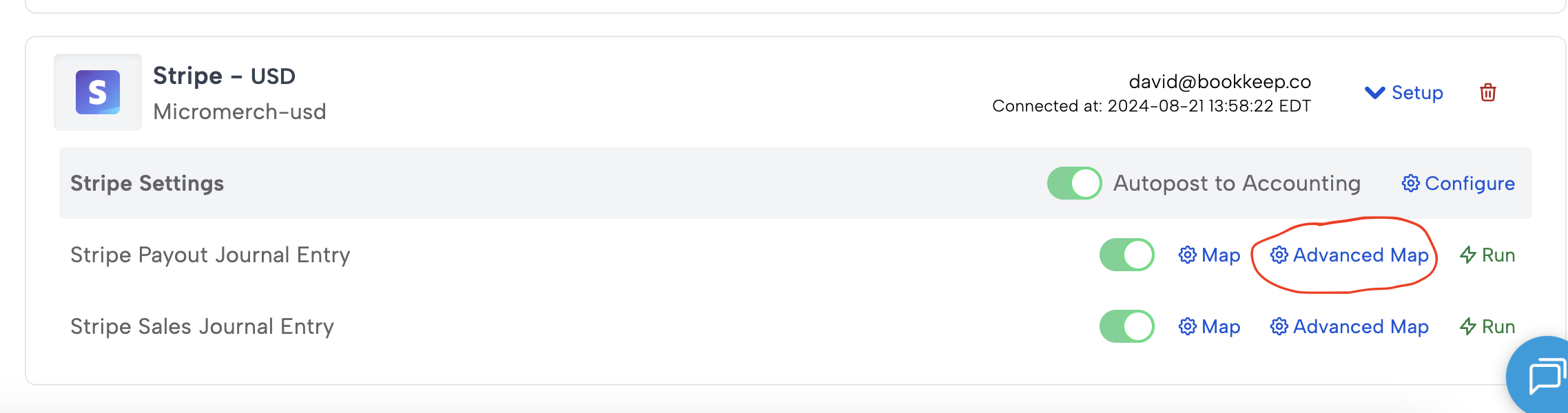
Note: Advanced Mapping opens in a separate, dedicated window, giving you a full-screen workspace focused entirely on mapping without distractions.
What is Advanced Mapping?
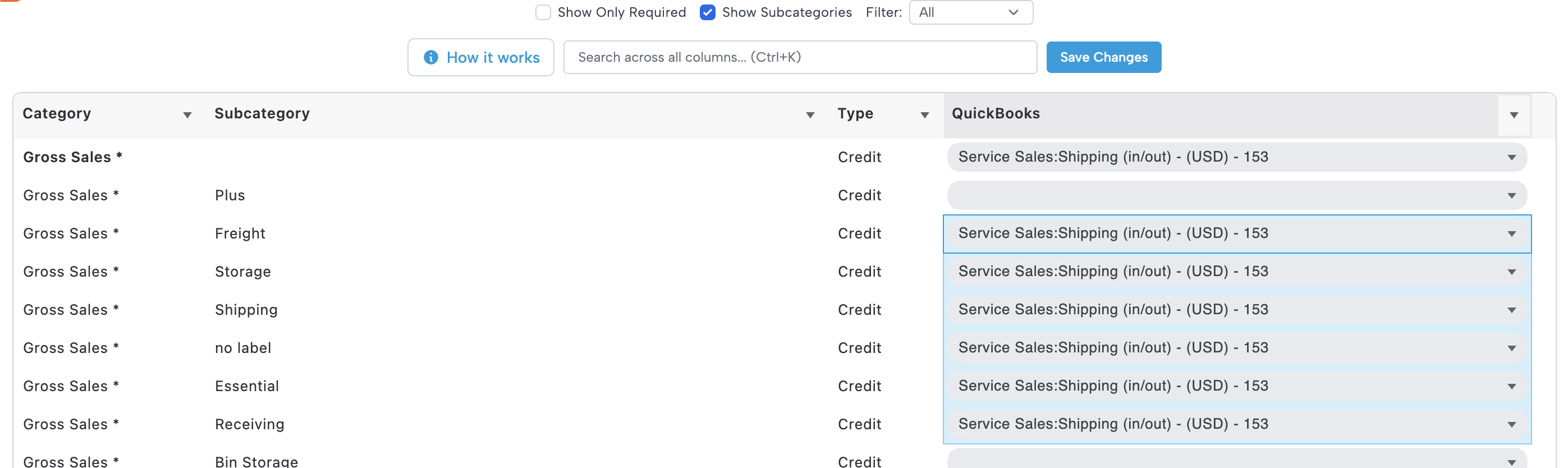
Advanced Mapping provides a spreadsheet-like interface for managing how your transaction data maps to your accounting system. Instead of working line-by-line in a rigid format, you can view, filter, and update mappings in bulk—just like you would in a familiar spreadsheet environment.
Key Benefits
1. Spreadsheet-Like Experience
-
Work in a grid format similar to Excel or Google Sheets
-
Quickly scan and compare mappings across rows and columns
-
Easily navigate large datasets without clicking into individual records
2. Powerful Filtering Options
Quickly narrow down exactly what you need to work on:
-
Required lines only – focus on what must be mapped
-
Unmapped lines – identify gaps instantly
-
Mapped lines – review or audit existing mappings

This makes it easy to prioritize setup and ensure nothing is missed.
3. Bulk Loading of Subcategories
-
Add or update multiple subcategories at once
-
Avoid repetitive manual entry
-
Ideal for marketplaces or systems with large category sets
4. Side-by-Side Dimension Comparison
-
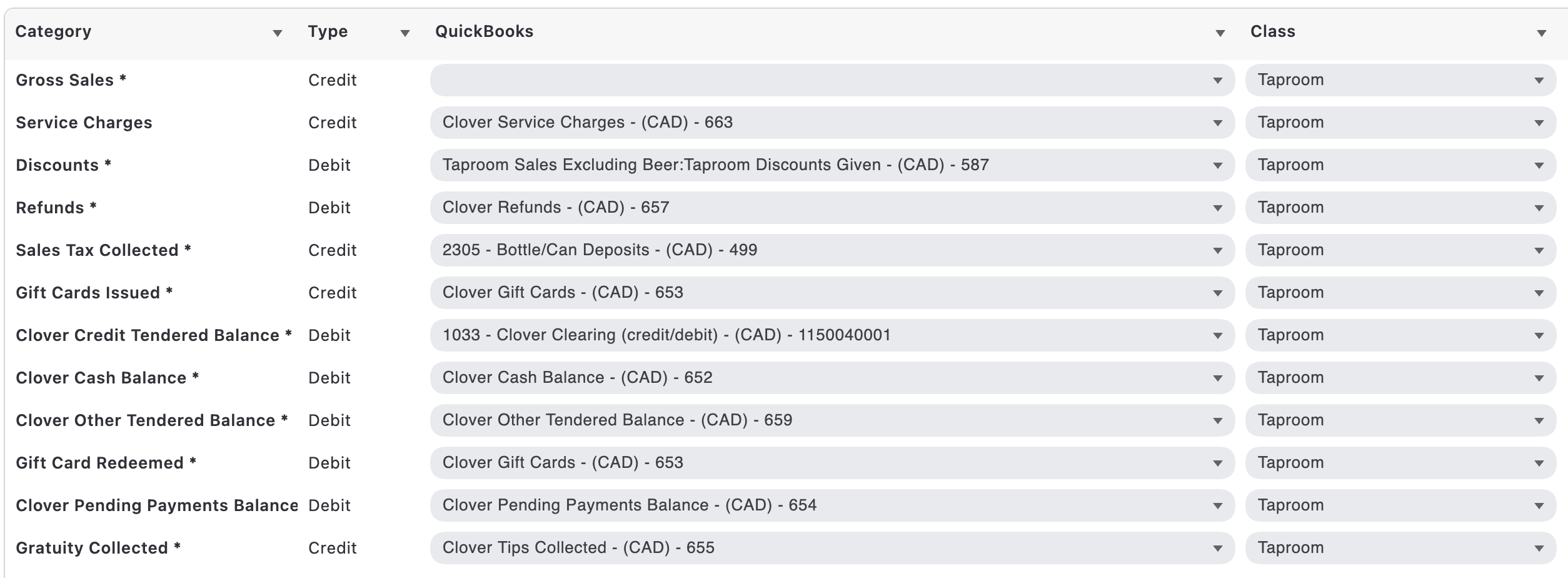
View dimensions (e.g., classes, locations, tags) alongside account mappings
-
Instantly verify that accounts and dimensions align on the same row
-
Reduce errors caused by mismatched or incomplete mappings
5. Fast Search Functionality
-
Instantly locate specific categories, accounts, or dimensions
-
Great for large mapping tables where scrolling is inefficient
6. Copy Mapping for Speed and Consistency
One of the most powerful features:
-
Copy a mapping from one row
-
Apply it across multiple other rows in seconds
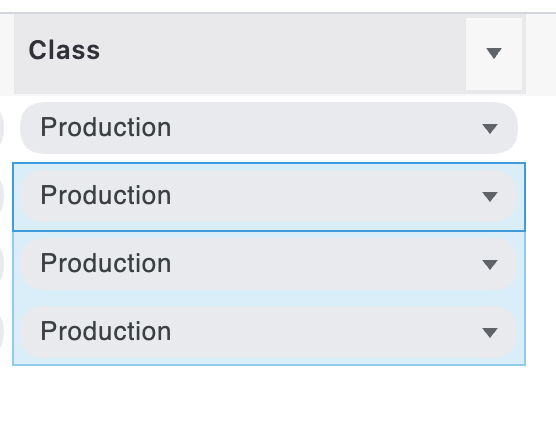
For example, you can press Ctrl + C on “Production,” then select the three empty cells below it and press Ctrl + V to quickly fill those cells with “Production.”
This dramatically reduces setup time and ensures consistency across similar transaction types.
When Should You Use Advanced Mapping?
Advanced Mapping is especially helpful when:
-
You’re onboarding a new integration with many categories or SKUs
-
You need to audit or clean up existing mappings
-
Your accounting setup includes multiple dimensions (classes, locations, etc.)
-
You want to standardize mappings quickly across similar data sets
Summary
Advanced Mapping transforms chart of accounts mapping from a manual, line-by-line task into a fast, flexible, and scalable workflow. With filtering, bulk actions, side-by-side comparisons, and powerful copy functionality, you can map more accurately—and in a fraction of the time.