Map Across Connections
Map Across Connections shows one journal entry template for several connections in a single grid. Each column is a connection, each row is a line of the template, and each cell is that connection's mapping for the line.
Use it to keep mappings consistent across multiple stores, locations or accounts - or to decide where the mappings should differ on purpose.
Beneath the hood, this feature is a second view of the same mappings as each connection's own Map page. A change saved in either place shows up in the other.
Where to find it
Open Connections → Accounting and click Map across connections at the top right. The grid opens in a new tab. The same link sits on every connection's advanced mapping page.
An accounting platform must be connected first. Anyone who can view mappings can open the grid. Saving needs permission to edit mappings. See Bookkeep user types.
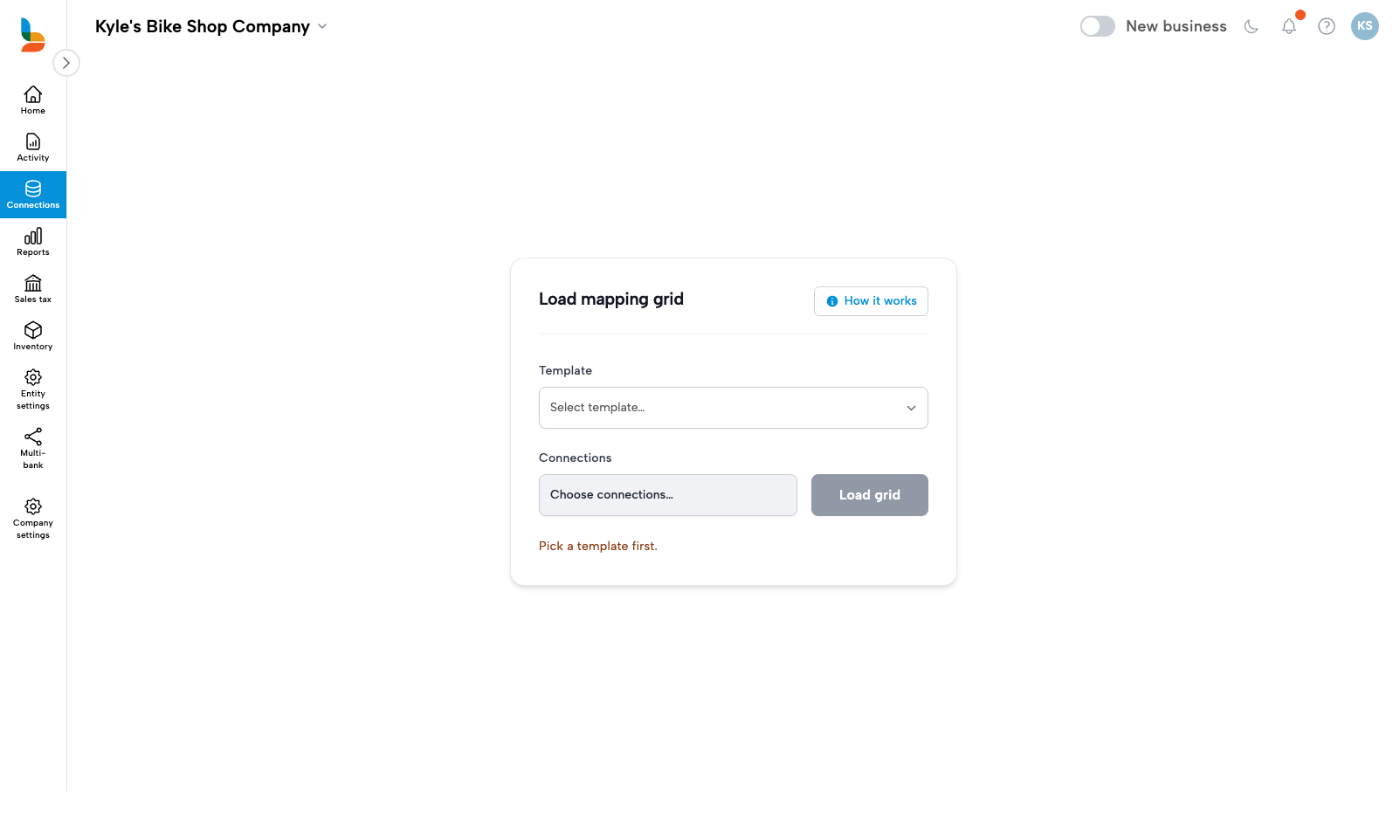
Load the grid
Template. The journal entry template to compare, for example Shopify Ecommerce or Square Sales Summary. The list holds only templates that at least one of this entity's connections uses.
Map to. Shown when your accounting platform has dimensions: QuickBooks classes and locations, Xero tracking categories, Intacct dimensions. Choose Account / tax to compare accounts and tax codes, or one dimension to compare its values. Each choice loads its own grid.
Connections. Click Choose connections and tick the ones to compare. Search by name, Select all, or Add all shown after a search, then Save selection.
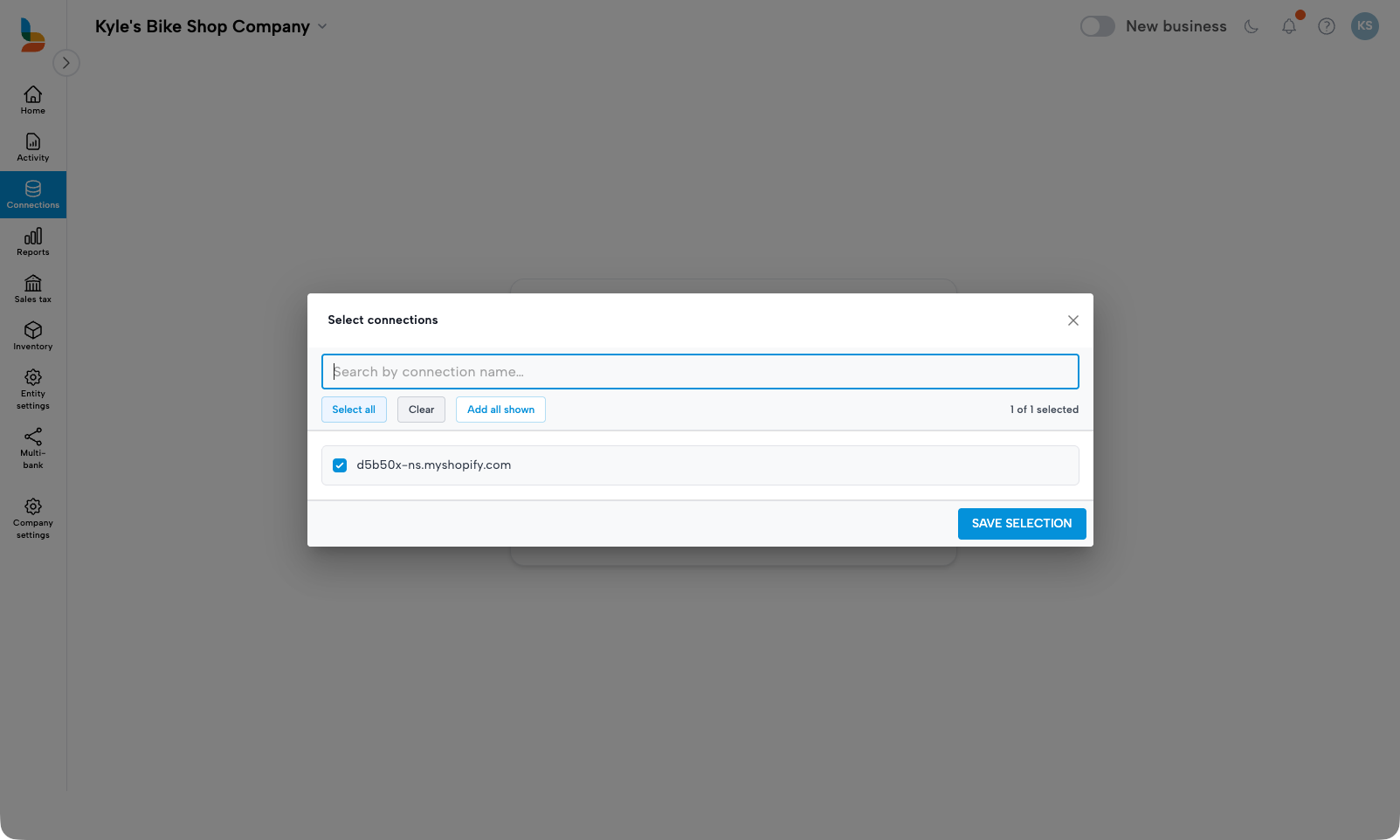
Click Load grid. Every connection you pick must post to the same accounting connection. If the selection spans two QuickBooks companies, Bookkeep asks you to choose from one.
Once the grid loads, the panel collapses to one line: template, mapping type, connection count. Change setup reopens it, and Esc closes it.
Read the grid
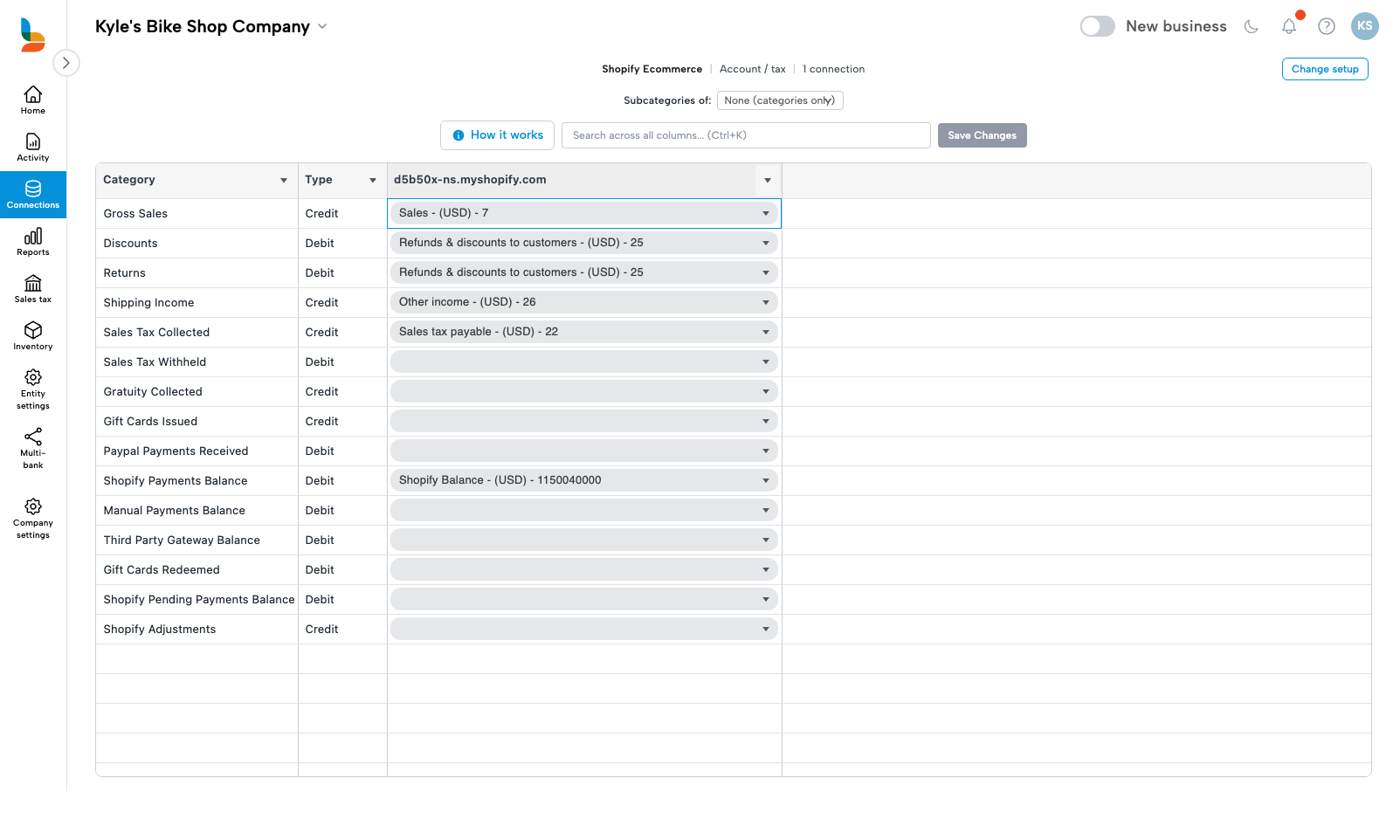
Category, Type. The template's lines and whether each posts as a debit or a credit. These columns stay in place while you scroll sideways.
How mappings differ. The number of distinct mappings the row has across the loaded connections. 1 means every connection maps the line the same way. Click the number for the breakdown: each mapping and how many connections use it. Pick one to show only those connections. A banner names the filter and Clear removes it.
Connection columns. One per connection, headed with the connection's name. A blank cell is unmapped. Not applicable means the connection has no data on that line. Not editable means the line is locked for that connection, such as a tax line whose account is fixed by a tax-rate setting.
Subcategories of. Pick a category to add its subcategory rows beneath it, for example the product categories under Gross Sales. One category expands at a time. Unmapped subcategories roll up to the parent's mapping, as on the single-connection page. See categories versus subcategories.
Click any header to sort or filter that column. The search box narrows rows across every column. Ctrl+K or Ctrl+F jumps to it (⌘ on Mac).
Edit mappings
Click a cell and pick an account from the dropdown. The list is limited to account types that fit the line, the same as on the single-connection page. On a dimension grid the dropdown lists that dimension's values.
To copy a mapping from one connection to others, select the cells and paste, or paste values from a spreadsheet. Cells that cannot take the value are skipped.
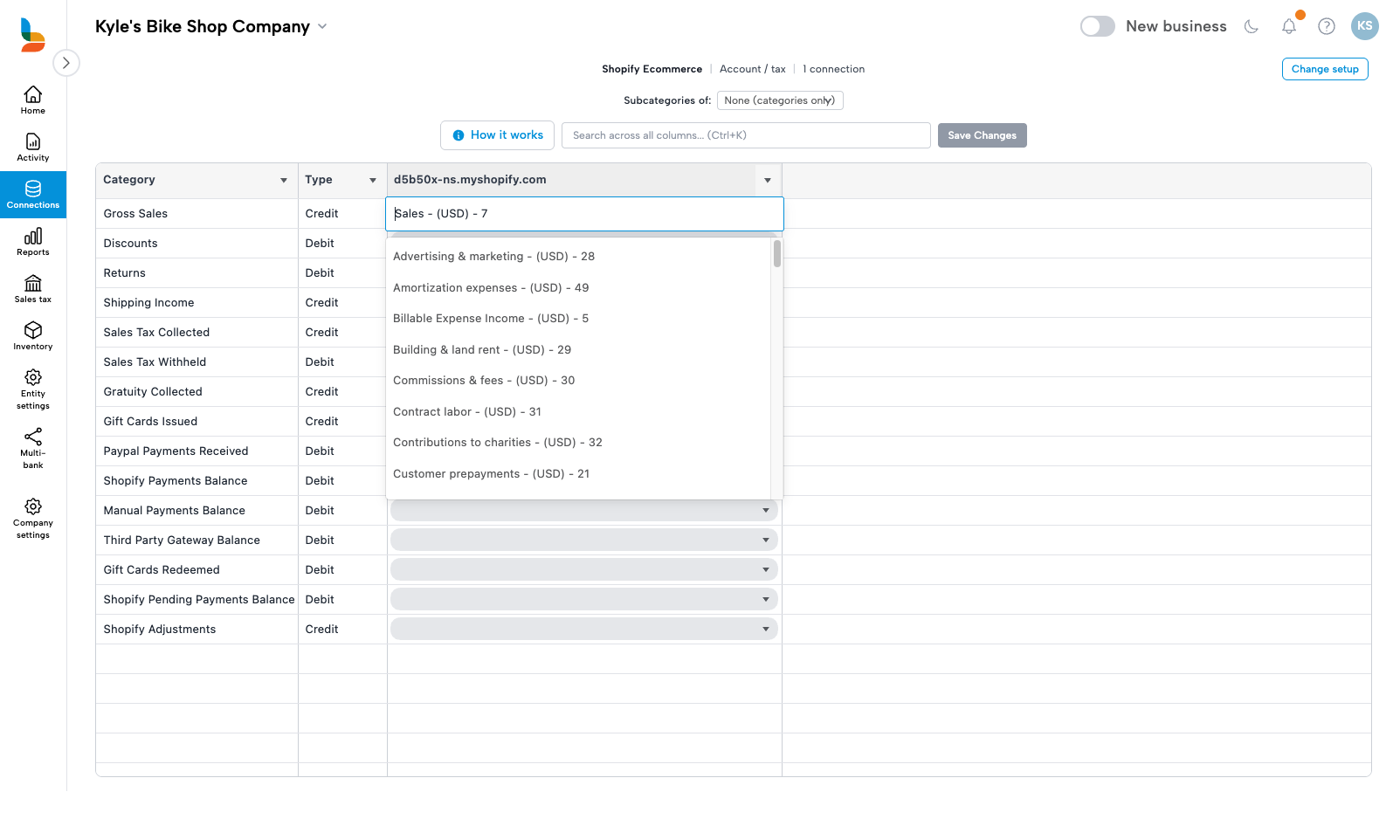
Save Changes, or Ctrl+S (⌘S on Mac), saves each edited connection in turn, shows progress per connection, then a confirmation. Leaving the page with unsaved edits shows a warning first.
If you have any questions, contact support@bookkeep.com.