Bookkeep Financial Reporting
Bookkeep’s Financial Reporting provides a centralized view of all your financial data across connected apps, with powerful filtering and export capabilities. With recent enhancements, you can now analyze app-level financial activity by date range, journal entry type, connection, and currency — and export the results for deeper analysis.
This makes it easy to answer questions like:
-
How did all of my Shopify stores perform in December?
-
What were total sales across all Square locations last month?
-
How do sales break down by product category across multiple stores?
-
Can I export this data for audit or reconciliation?
(Yes.)
App-Level Financial Reporting by Date Range
You can select a specific app, define a date range, and view all financial data for a chosen journal entry type — such as Sales or Deposits — across:
-
A single connection, or
-
All connections for that app
Example use cases
-
View December sales across all 5 Shopify stores connected to Bookkeep
-
Filter to one Shopify store to review location-specific performance
-
Validate totals before posting or reconciling in your accounting system
Granular Rollups & Subcategory Visibility
Bookkeep goes beyond high-level totals by allowing granular views of your financial data, based on your selected rollup method.
If your sales are rolled up by product category, you can:
-
See gross sales broken down by category
-
Drill into subcategory-level detail
-
Understand what’s driving revenue across stores or locations
This gives you both:
-
Summary-level insight for accounting, and
-
Detailed operational visibility when you need it
Export Your Financial Data
All reported data can be exported, making it easy to:
-
Share reports with stakeholders
-
Support audits or reviews
-
Perform custom analysis outside of Bookkeep
-
Tie totals back to your accounting platform
Exports respect:
-
App selection
-
Date range
-
Journal entry type
-
Connection filters
-
Currency selection
What you see is exactly what you can export.
How It Works
1. Set a Date Range on the Reporting View
To access this feature, click on the "Reporting" link in the left navigation menu, as seen below:

Define the time period you want to analyze. Bookkeep returns all matching financial data across the selected connections.
2. Select an App and Connections
Choose the app you want to analyze (e.g., Shopify, Square, Toast).
By default, Bookkeep includes all connections for that app, with the option to filter to a subset of connections in the "All Connections" dropdown.
3. Choose a Journal Entry Type
Select the financial activity you want to review, such as:
-
Sales
-
Deposits
-
Other app-specific journal entry types
4. Select a Currency
Because Bookkeep supports multi-currency environments, you must select a single currency to view or export data.
This ensures totals remain accurate and comparable.
5. Generating Your Report
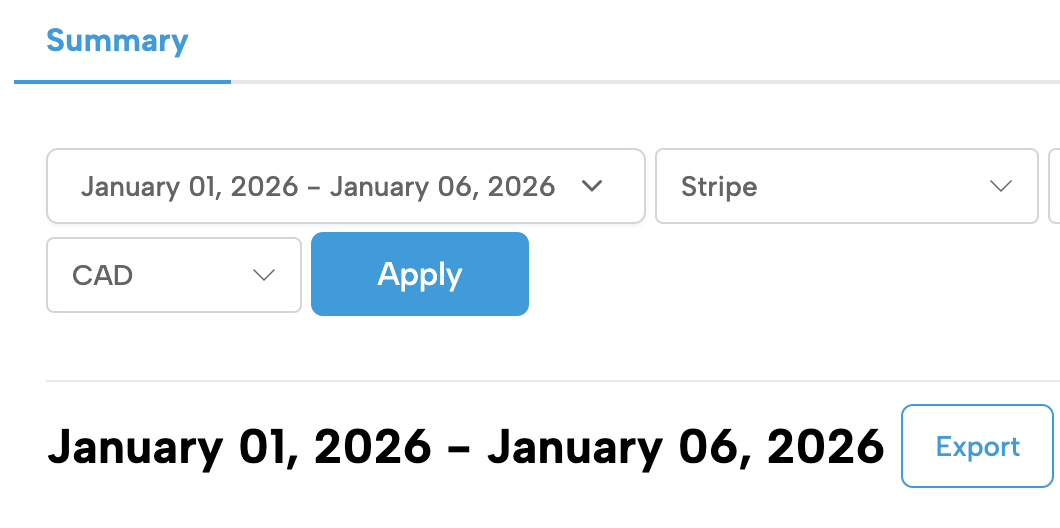
After selecting the desired dates, connections, and currency, simply click on the "Apply" button to instantly view the financial results for the selected date range.
6. Exporting Your Data
After clicking "Apply," you will see an "Export" button next to the date range title as shown below:
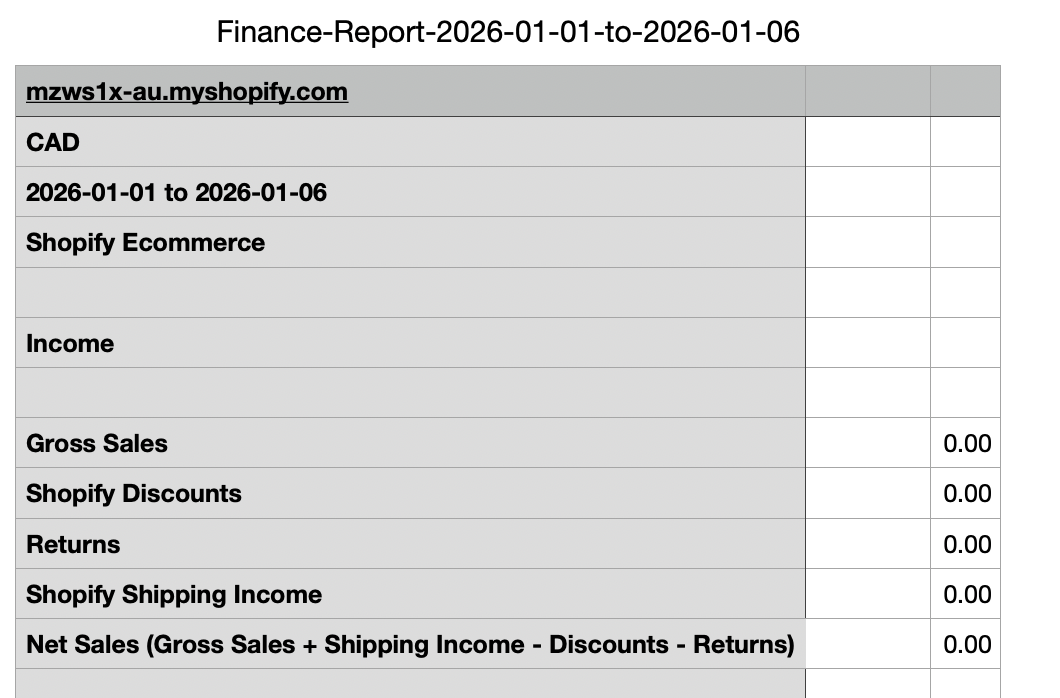
Clicking "Export" will download the data as a CSV on your device.
Why This Matters
Financial Reporting in Bookkeep helps you:
-
See all financial activity in one place
-
Analyze performance across multiple stores or locations
-
Drill into detailed revenue drivers when needed
-
Export clean, accounting-ready data
-
Simplify month-end, reconciliation, and audits
In short, it gives you full visibility and control over your financial data — from high-level summaries down to category-level detail.
If you have any questions or need assistance, please don't hesitate to contact our support team at support@bookkeep.com.